Printable Classroom Name Tags
Enter up to 60 names and create printable student name tags, cubby labels, and classroom labels. Printed output supports common Simplified Chinese and Latin names; tracing retains its explicit Latin boundary.
Customize and preview classroom name tags
Quick starts
Apply a complete product preset while keeping your current class list.
Output actions
Create classroom name tags in 3 steps

Add your class roster
Type names one by one, paste a list, or import a local CSV, then add 0–10 blank extras if needed.

Choose purpose, theme, and name style
Make name tags or wider cubby labels with three functional themes and printed, traceable, or blank write-in treatments.
Preview, print, or download
Check every real page, then print or download the vector PDF after replacing the demo roster.
Five classroom name activities

Morning name check-in
Invite children to find their own name tag as they arrive.

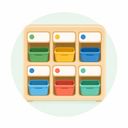
Match names to cubbies
Pair each name label with the correct cubby, hook, or work pocket.

Practice name tracing
Use traceable tags to rehearse the letter order and movement in a child’s name.

Classroom helper cards
Move reusable name cards between line leader, materials, and helper jobs.

Partner name game
Turn over or match class name cards to practice recognizing classmates’ names.
Roster, layout, and printing tips

Keep the roster on this page
Names never enter the URL, browser storage, analytics, logs, or PDF metadata. Finish your output before refreshing or closing the page.

Keep every name readable
Check the longest name in Preview first; choose a wider or lower-density layout when larger text is needed.

Include a few blank extras
Add 0–10 blank labels for new students, temporary groups, or names written by hand.
Calibrate, then print at actual size
Print the calibration PDF at 100% or Actual Size, measure its 100 mm line, then use the same settings for the name tags.
Designed for everyday classroom labeling

A consistent label set
One roster, layout, and style creates a coordinated set across every page.
Fits different writing stages
Use printed names for recognition, tracing for practice, or blank lines for handwriting.
Preview matches the output
Live preview, browser print, and vector PDF use the same page layout.
Useful for these classroom needs



Classroom name tag FAQs
How many name tags can I make at once?
Are student names saved or sent to a server?
Why can’t I print the demo roster?
Which characters can be printed or traced?
Continue preparing classroom materials
Create companion materials for seating, letter formation, and everyday classroom learning.
- Desk PlatesCreate full-width Large learning desk plates or Compact name plates for up to 60 Latin-script names, with exact size and fit checks before output.Open tool
- Letter Formation CardsFree printable letter formation cards A–Z to help children learn letter shapes, stroke direction, and handwriting order. Customize, preview, and download as PDF.Open tool
- Name Tracing Worksheet GeneratorCreate tracing worksheets from an English name or pinyin for handwriting practice.Open tool
- Letter Tracing Worksheet GeneratorPractice uppercase and lowercase letter formation with printable tracing sheets.Open tool
Start creating
Make a name-tag set for your class
Add your roster, choose a layout, and check every name before printing.